
Release notes
-
Add some for preparing the next workshop on 2021-08-13T09:00
-
Add instructor demo Jenkins Time Trigger in Jenkinsfile
-
Add prepare instructions
-
-
Add remark regarding Jenkins .war
-
Add explain and fix for using Periodically build
-
Fix a typo in link below Exercise: Build Triggers
-
Add note so that I do not forget to stop recording
Preparation actions to rerun the workshop
-
Remove the old volumes from previous sessions (See tip below)
-
Remove the time based triggers in Jenkinsfile before the workshop
docker ps -a --filter volume=VOLUME_NAME_OR_MOUNT_POINTIntro and Agenda
| Perhaps stop the recording of this session |
-
Target of this workshop is to learn Jenkins, if that is your target also than that is enough intro
-
More about me?
-
LinkedIn: Raymond Loman, owner of Carpago Software
-
-
Personal questions or problems you are currently experiencing with Jenkins ???
Planning
09:00 - 12:00 (GMT+02:00)
3.0 hours x 2 = 6 pomodoros workshop time
Legenda
-
Target
-
Situation (if there is a particular situation e.g. a Github repo)
-
Roadmap
-
Steps
-
Validation
Assumed Knowledge
OTAP ::= Ontwikkel ⇒ Test ⇒ Acceptatie ⇒ Productie
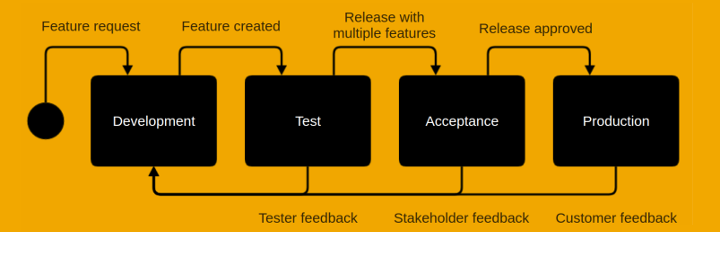
Generally said, a build is a deployable, mostly binary product which is based on the source-code of the team
-
CI ::= Continuous Integration
-
When making changes to a (Github || Gitlab || Bitbucket) code repo, there is someone who automatically tests the software e.g. that is will build correctly. That someone here is from now on our Jenkins machine :-)
-
-
CD(1) ::= Continuous Delivery
-
CI+Shipping the software to that it is READY to be set in production
-
-
CD(2) ::= Continuous Deployment
-
Directly shipping software to production
-
1. Topic: Jenkins Introduction
-
Jobs
-
Jenkinsfile
-
Triggers
-
Pipeline(s)
-
Testing and Integration testing of the sourcecode
-
Installation of the build
-
Perhaps restart of the server / container / update the cluster
2. Topic: Jenkins Installation
The instructor will demo how we can install Jenkins - using Docker or Java - and get started with Jenkins.
This preludes the exercise which is upcoming next.
2.1. Exercise: Jenkins Installation and Configuration
-
Whether you are using Docker
-
See below instructions
-
-
Or you are using the Jenkins WAR to run Jenkins: https://www.jenkins.io/download/
-
Usage: java -jar jenkins.war
-
The instruction below regarding the secret key apply also for running Jenkins as a .war file
-
-
Or you just like to watch the trainer do the exercise
If there is someone with no experience with Docker or has no Docker experience and has no Java JRE the trainer will do the exercise with and for them in a separate Zoom room or just in the same global room.
Perhaps split the room in some clusters?
To learn how to get Jenkins started and to login to Jenkins
During this exercise we will install Jenkins using a prepared Docker image and login to Jenkins
-
Using Docker get the rloman/workshop-jenkins:1.0.0 image from docker.io
-
docker image pull rloman/workshop-jenkins:1.0.0
-
| The name argument in the next line is prefixed with two dashes, while the other arguments are prefixed with one dash |
| Invoke the next statement on one line! |
-
Create a Docker container on port 8080
-
docker container run -dit --name workshop-jenkins-container-1.0.0 -v jenkins_home:/var/jenkins_home -v /var/run/docker.sock:/var/run/docker.sock -p 8080:8080 -p 50000:50000 rloman/workshop-jenkins:1.0.0
-
NB: HTTP port 50000 in Jenkins is used for master-slave communication
| Be sure to pull the image for now, and later, since updating the image only works with the docker pull command |
-
Get the initial password for the admin user
-
Execute: docker container logs workshop-jenkins-container-1.0.0
-
⇒ Will print somewhere a long hash which is the first initial password, copy that to your clipboard
-
-
Open a browser to http://localhost:8080
-
When started supply the password which you copied above
-
Apply Install suggested plugins
-
Have a cup of coffee (takes upto 1-2 minutes)
-
Create first admin user and fill in the form (and remember the username and password!)
-
Click Save and Continue
-
Accept the default
-
Click Save and Finish
-
Click Start using Jenkins
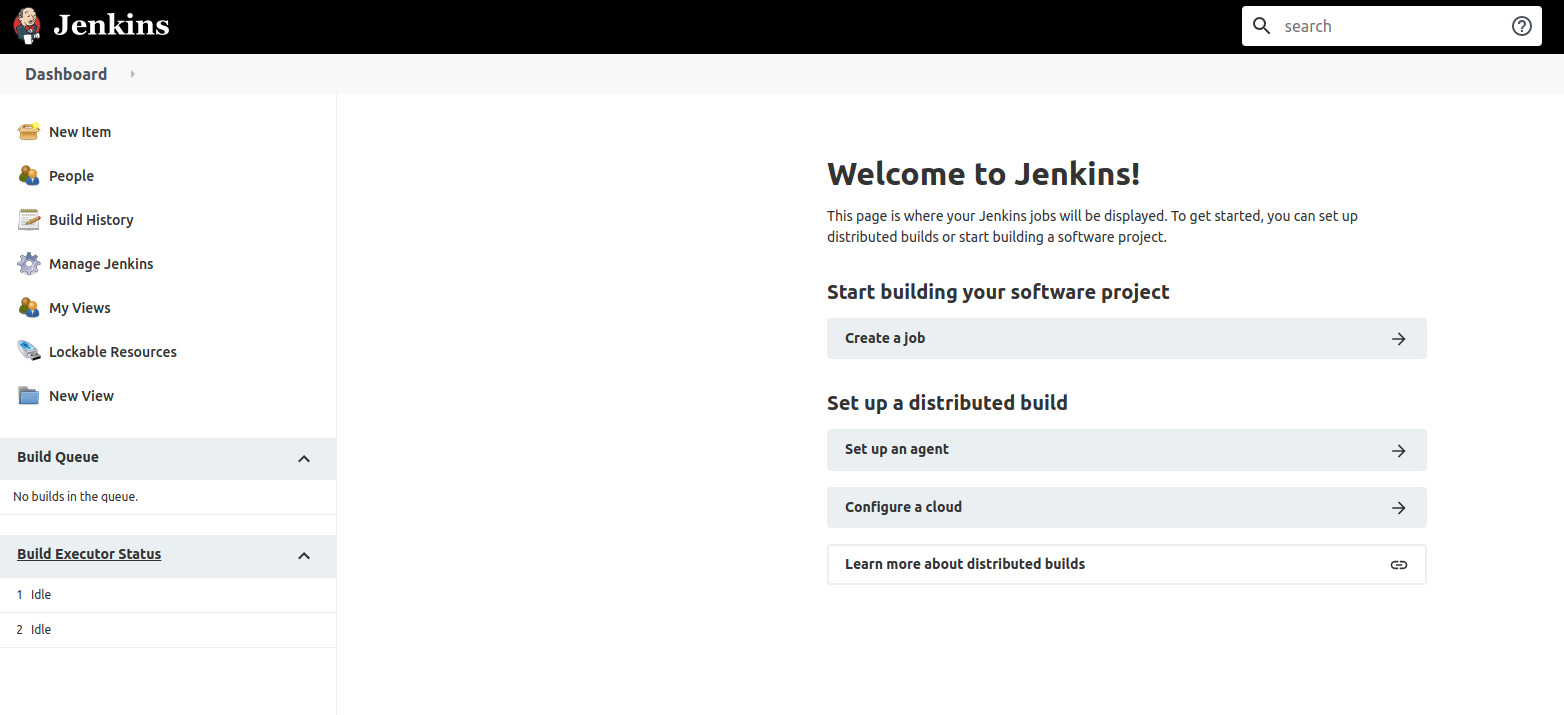
We now have a running Jenkins machine using a Docker image and are able to login. In the next section we will conduct Jenkins to our needs

3. Topic: Jenkinsfile
The Jenkinsfile is the file from which Jenkins is able to build.
-
the programmatic (forget for now)
-
the declarative version of the Jenkinsfile which we will use during this workshop
The Jenkinsfile is a regular Groovy based file with statements in it which are invoked by Jenkins
def gv; // holds the groovy script which in initialised below in the init step

pipeline {
    agent any
    environment {
        NEW_VERSION = "0.2.0-SNAPSHOT"
    }

    stages {
        stage("init") {
            steps {
                script {
                    gv = load "script.groovy"
                }
            }
        }
        stage("build") {
            steps {
                script {
                    gv.buildApp()
                }
                //sh 'mvn clean verify'
            }
        }
        stage("test") {
            steps { // for every branch
                echo "Testing the application ... "
            }
        }
        stage("acceptance") {
            when {
                anyOf {
                    branch 'release/*'; branch 'hotfix/*'
                }
            }
            steps {
                echo "Releasing the application to acceptance (using the release/ branch) ... "
                echo "Release the app with version: ${NEW_VERSION}"
                echo "Release the app with build number: ${BUILD_NUMBER}"
            }
        }
        stage("prod") {
            when {
                anyOf {
                    branch 'master'
                }
            }
            steps {
                echo "Deploying the application to production ... since the master branch is updated"
            }
        }
    }

    post {
        failure {
            echo "Build failed (in post)"
        }
        success {
            echo "Build succcess (in post)"
        }
        always {
            echo "Build completed in always (in post)"
        }
    }
}-
How do you find the Jenkins environment variables which are available for use in the Jenkinsfile
-
http://<yourjenkinshost>:<your jenkins port>/env-vars.html
-
There is a lot more behind the scenes to know, write and learn regarding Jenkinsfile. Please follow the links below after this workshop to get more knowledge regarding this.
We will do a lot more with the Jenkinsfile in the next topic, regarding Development Pipeline
4. Topic: Development Pipeline
A development pipeline is a flow through some steps during a build in which the software will be enriched by steps taking during the pipeline e.g.
We can have multiple branches in the Git repo which are all under build control in which the above mentioned pipeline can be applied. Some steps of the build above can be enabled or disabled per branch e.g. in the develop branch there is no deployment to production, but in the branch master there is of course a deployment to production
So in fact, a Multibranch pipeline is a matrix. Over the horizontal axis you will see the pipeline steps Over the vertical axis you will find the separate branches this Multibranch Pipeline applies to
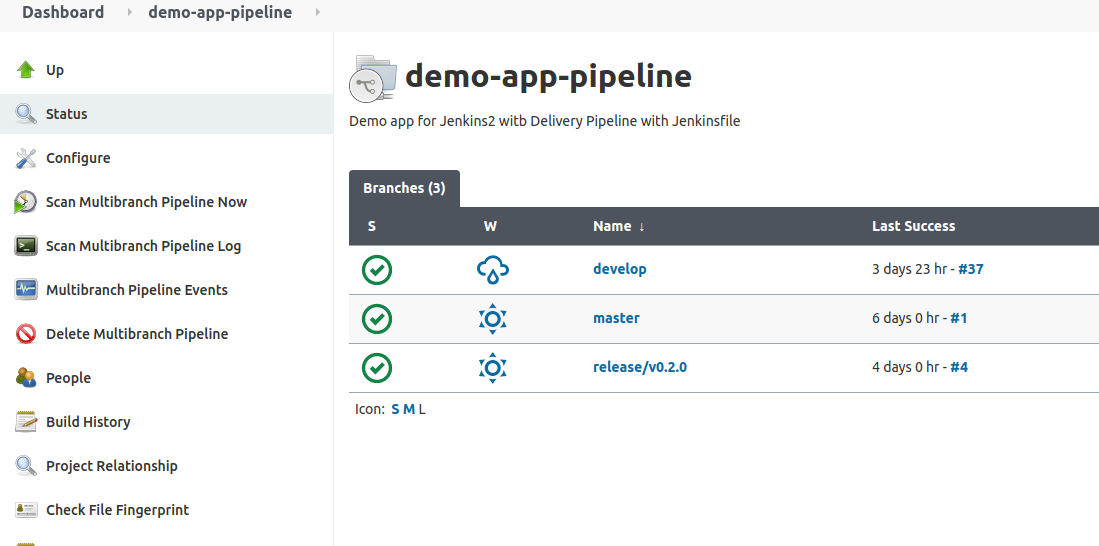
| The upcoming Demo and Exercise are both based on this repo |
4.1. Instructor Demo
To show what you can do with a Multibranch Pipeline item
The instructor will demo the usage of a Multibranch Pipeline
-
Create || Show a Jenkinsfile in the repo
-
Create a multibranch pipeline item
-
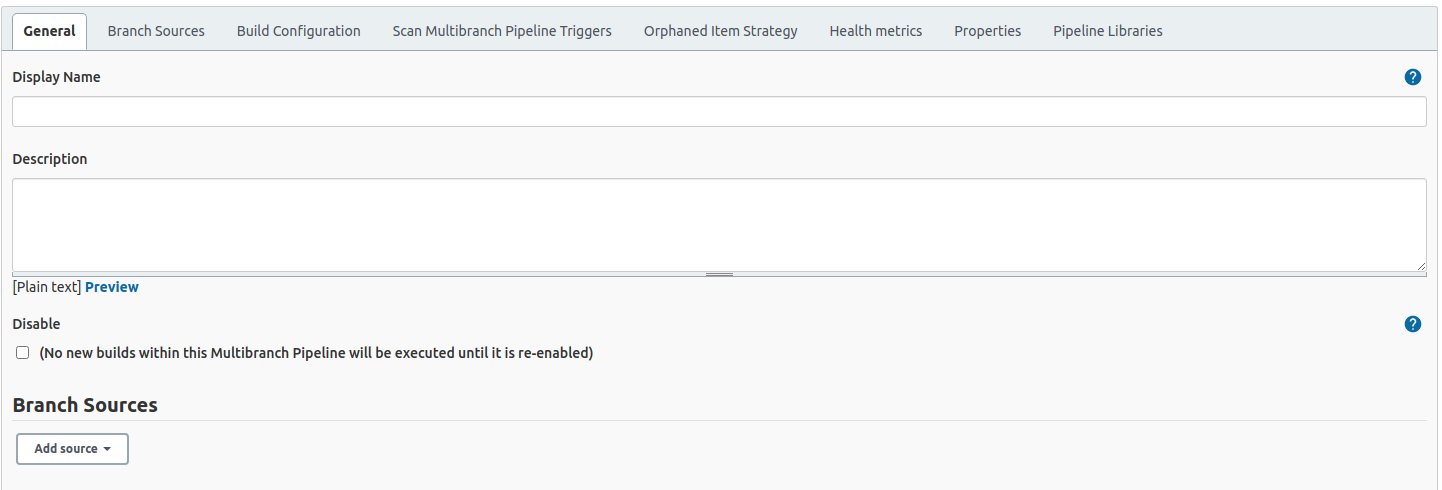
Add Branch Source
-
Set the repo url
-
We will be using Git and NOT GITHUB since Github was having issues regarding too many builds per halve hour in my previous session
-
-
Validate that Discover Branches is selected below Branch sources
-
Click Save
-
The Multibranch pipeline will start now if not ⇒
-
Invoke the build by clicking the Scan Multibranch Pipeline Now button
-
4.2. Exercise: Multibranch Pipeline
To learn how to create a Jenkins Pipeline
During this exercise we will add a new job to Jenkins which in this case is a Multibranch Pipeline. We will create a build, test and release pipeline steps for the develop branch using the demo-app provided by the trainer
| In the following Steps be warned that the selection of Source repo must be Git and not Github since there are a maximum pulls per hour on that plugin and that hinders us during this workshop |
-
Create a Multibranch Pipeline
-
-
In tab General under Branch Sources click Add source
-
-
Leave Credentials open since it is a public repository
-
-
Validate that just below Credentials there is selected menu:[Behaviours > Discover branches ]

-
Leave that intact, it means that Jenkins will automagically add branches which are new to the build pipeline
-
-
Save by clicking the Save button below
-
-
The build should start, if not ⇒
-
Invoke the Multibranch Pipeline Scan
-
Click the Scan Multibranch Pipeline Now button
-
-
Jenkins should now build the appropriate branches as shown in the demo above after clicking the Scan Multibranch Pipeline Now button
-
Replay a Pipeline job with eventually changing the build scripts
-
You can Replay a Pipeline job by clicking on the Replay button and selecting on the Pipeline job. That is a handy feature when you want to re-run an existing perhaps before failing job.
-
| You can even change the build scripts before starting the build! |
5. Topic: Triggers
-
Crontab (from chrono) means setting a Linux based String to express some time (wildcards are allowed)
-
Syntax: MINUTE HOUR DATE MONTH WEEKDAY e.g. 30 6 * * 1-5 runs at 6:30 everydate and everymonth on every workday
-
-
By manually starting a build
-
By setting a Build Trigger Configuration the configuration section
-
By setting a crontab expression on which time the build should run in Jenkinsfile
-
By setting a webhook so that Jenkins gets a signal from Github when a change in the code has occurred
-
This is beyond the scope of this training
-
// Declarative //
pipeline {
    agent any
    triggers {
        pollSCM('H/5 5-17 * * 1-5')  // <= Polls per appr. 5 minutes every hour from 5-17  every workday
    }
    stages {
         stage('Example') {
             steps {
                echo 'Hello World'
            }
        }
    }
}| The configurating using cron expressions is removed from Jenkins 2 in a Multibranch Pipeline. In that case you have to resort to the triggers section in the Jenkinsfile. Which is itself is handier of course, since the developer is now able to adjust the time based triggering |
The instructor will explain some regarding crontab and the hashing function H/30 since that helps to spread the load evenly.
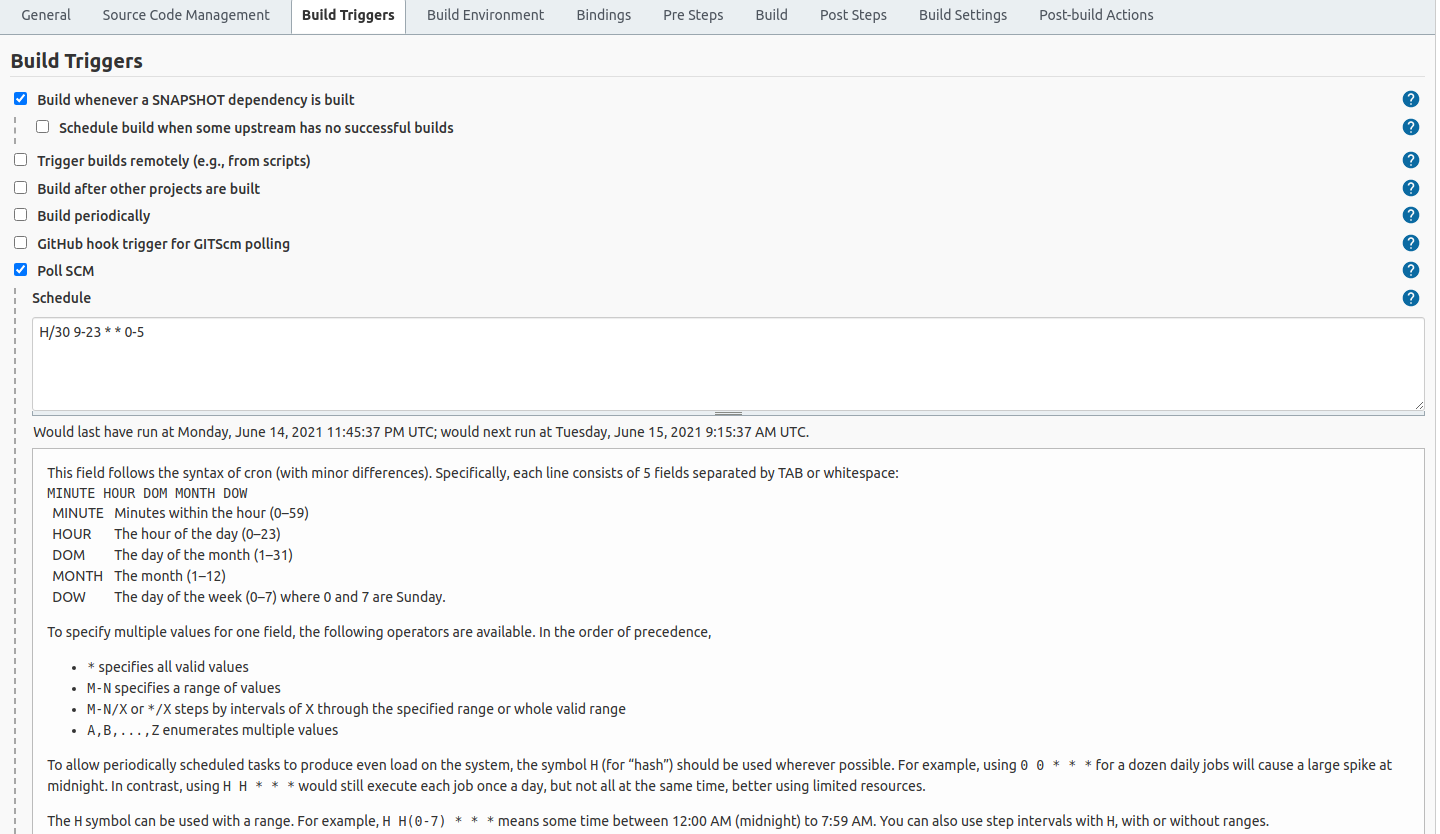
5.1. Demo: Build Trigger
Since this involves changing the Jenkinsfile, this is an instructor demo
During this demo the instructor will modify the Jenkinsfile to have a time based trigger appr. every 5 minutes
5.1.1. Steps
-
Add this to Jenkinsfile
pipeline {
    agent any
    // ...
    triggers {
        pollSCM('H/5 5-17 * * 1-5')  // <=
    }
    stages {
    // ...
    }
}
-
Push to develop
-
Trigger the Scan Multibranch Pipeline now since that will for this time update the Jenkinsfile for the last time manually!
-
Modify some else in the Jenkinsfile e.g. make a typo
-
Push it again
-
Grap a coffee
-
After grabbing a coffee Jenkins should have automatically have invoked the Scan Multibranch Pipeline of develop branch and have found a broken build
-
Fix the build
-
After 4-5 minutes Jenkins must have rebuild to status OK
5.2. Exercise: Build Triggers
We are going to use the demo-app Jenkins project again https://github.com/rloman/jenkins-demo-app.git
To learn how to set a build trigger to run every minute
During this assignment you will set to run the Jenkins job every minute
In Jenkins, go to
| Normally you would run that job not every minute but for the training-effect it is handy to run it every minute |
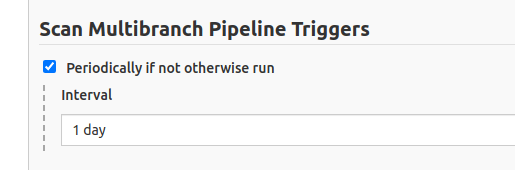
Jenkins should automatically start the Multibranch Pipeline build every minute, if not otherwise run
Set the trigger to every 30 minutes to prevent Jenkins from continuously building
6. Topic: Notifications
-
E-mail notification
-
Telegram notification
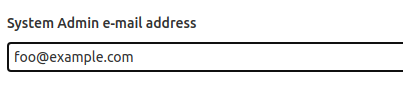
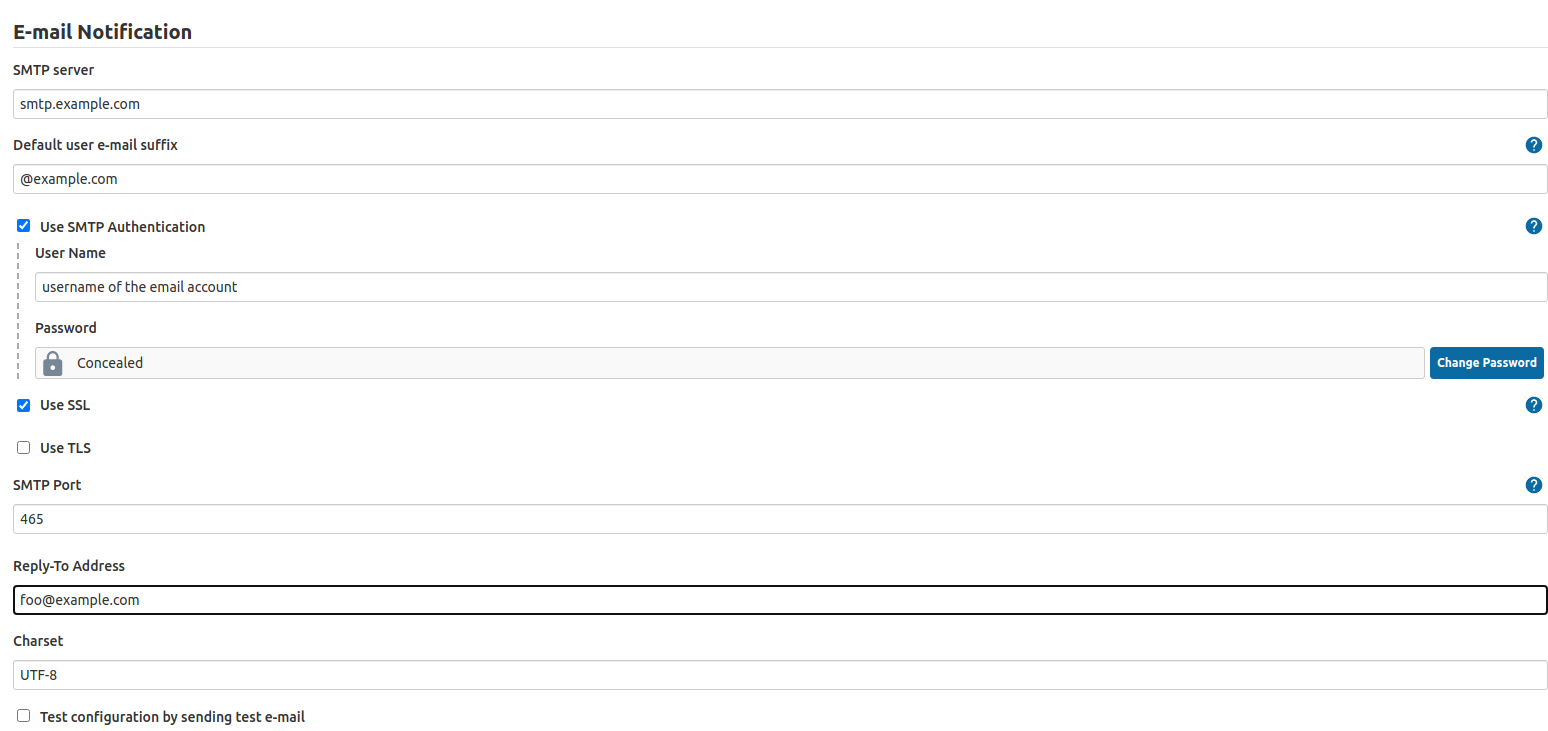
6.1. E-mail notification
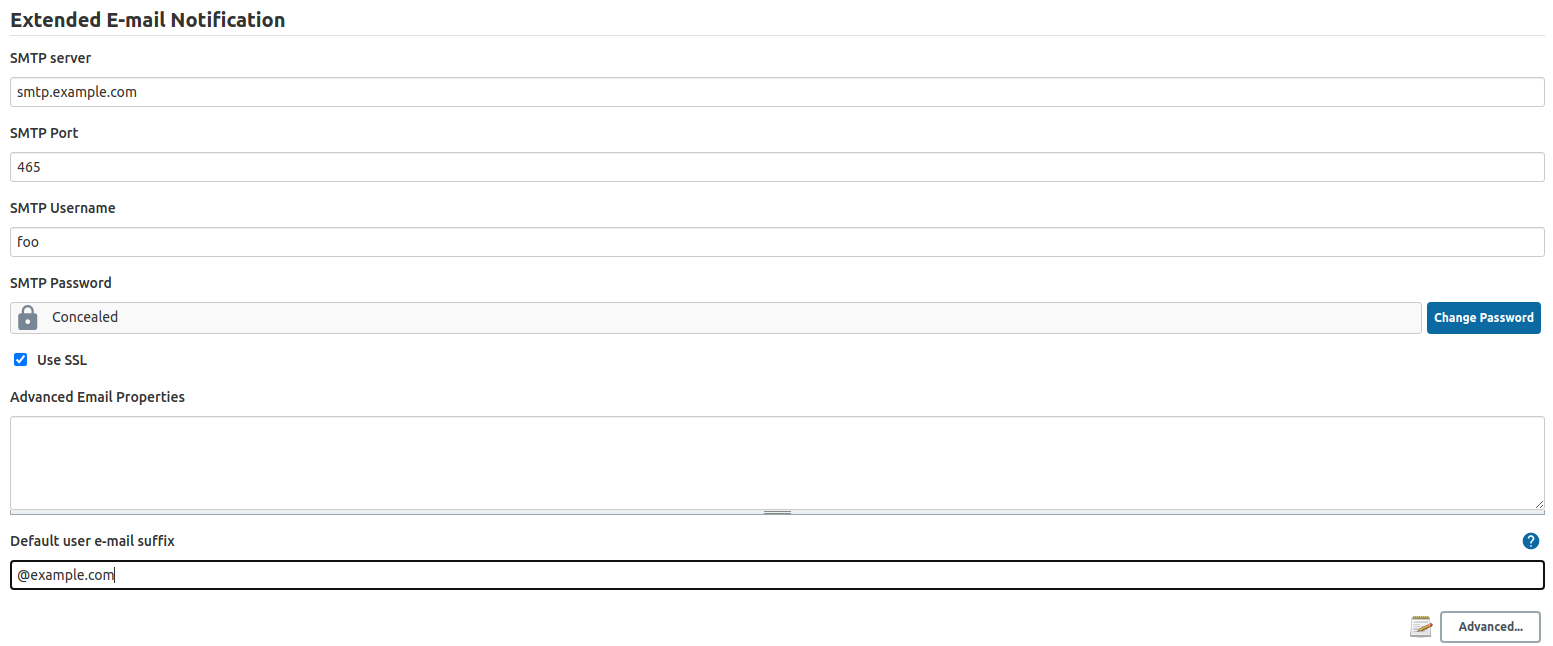
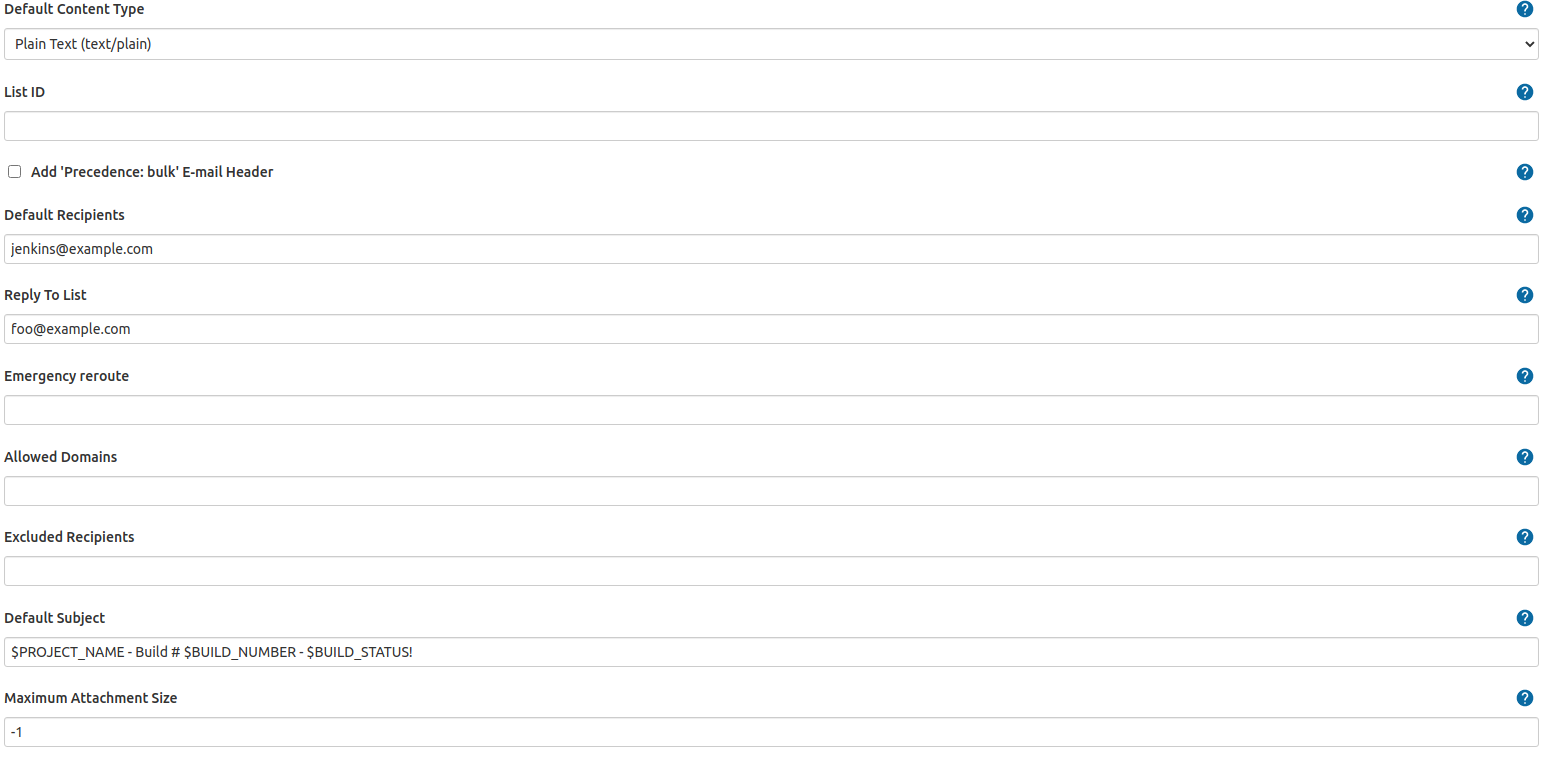
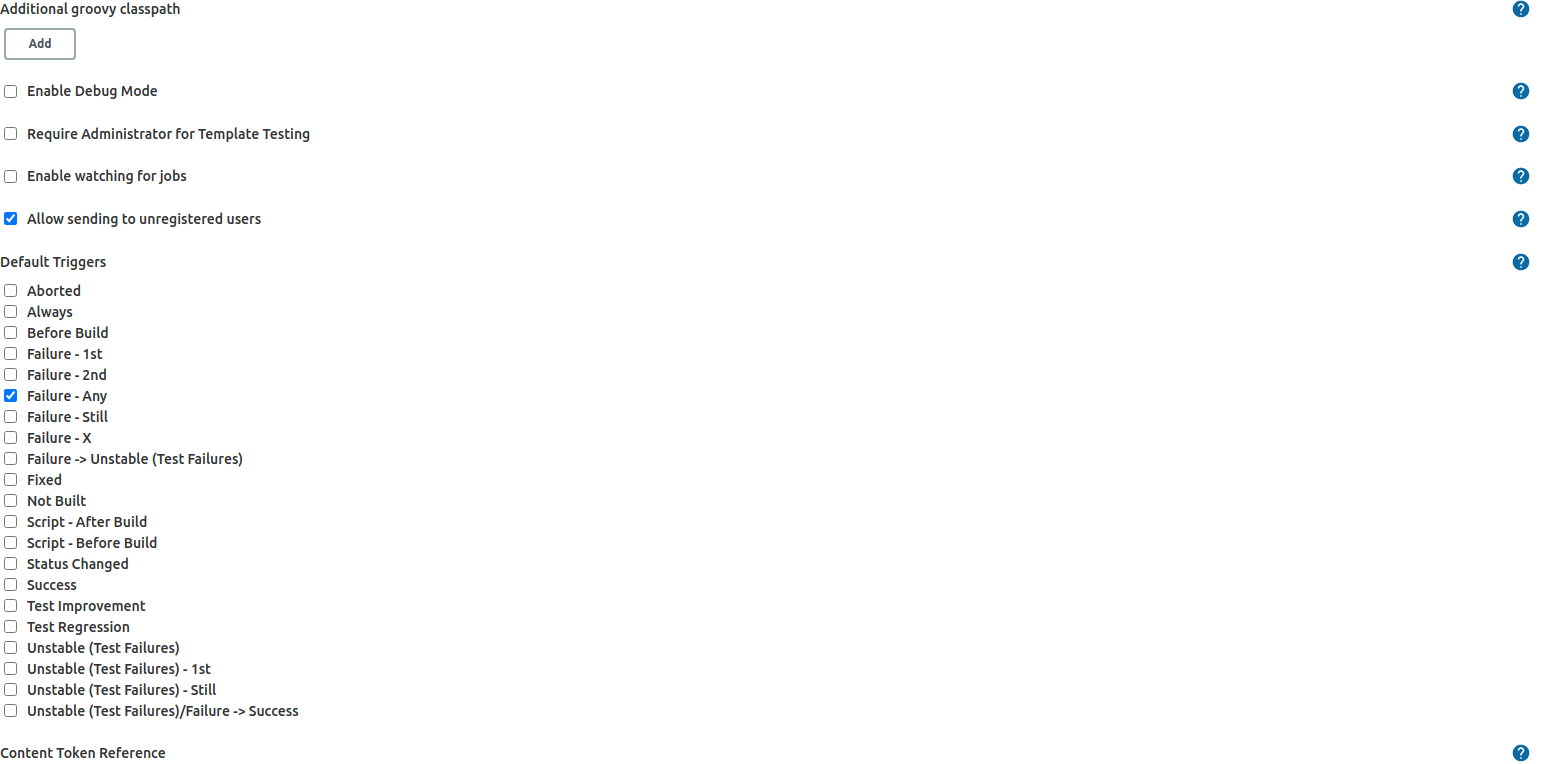
6.2. Telegram notification
Instructor Demo: Deploy to Docker
The instructor will demo a practical example how to Deploy an App to a Docker container using Jenkins
Kahoot
-
-
and supply a Game Pin to the trainees
Follow-Up trainings
-
Docker CN100
-
Docker Workshop for KPN (Friducation)
-
Visit the site of Global Knowledge and Mirantis regarding Docker trainings
-
Book your training at the KPN Academy
-
Any Questions: kpn.bloomville@globalknowledge.nl
Evaluation
This will be done by KPN itself, but a very short verbal evaluation may suffice
Finish
Thank you for your attending and attention
Share contact information if applicable???
Resources
-
Complete Jenkins Pipeline Tutorial | Jenkinsfile explained - YouTube
-
Run Jenkins in Docker Container part 1 to 4
-
Run Jenkins in Docker Container - Jenkins Pipeline Tutorial for Beginners 1/4 - YouTube
-
Create Multibranch Pipeline with Git - Jenkins Pipeline Tutorial for Beginners 2/4 - Youtube
-
Jenkinsfile - Jenkins Pipeline Tutorial for Beginners 3/4 - YouTube
-
Trigger Jenkins Build automatically - Jenkins Pipeline Tutorial for Beginners 4/4 - YouTube
-
-
GitHub Actions Tutorial - Basic Concepts and CI/CD Pipeline with Docker